
 General
How to Extract Hex Code From Any Website Online

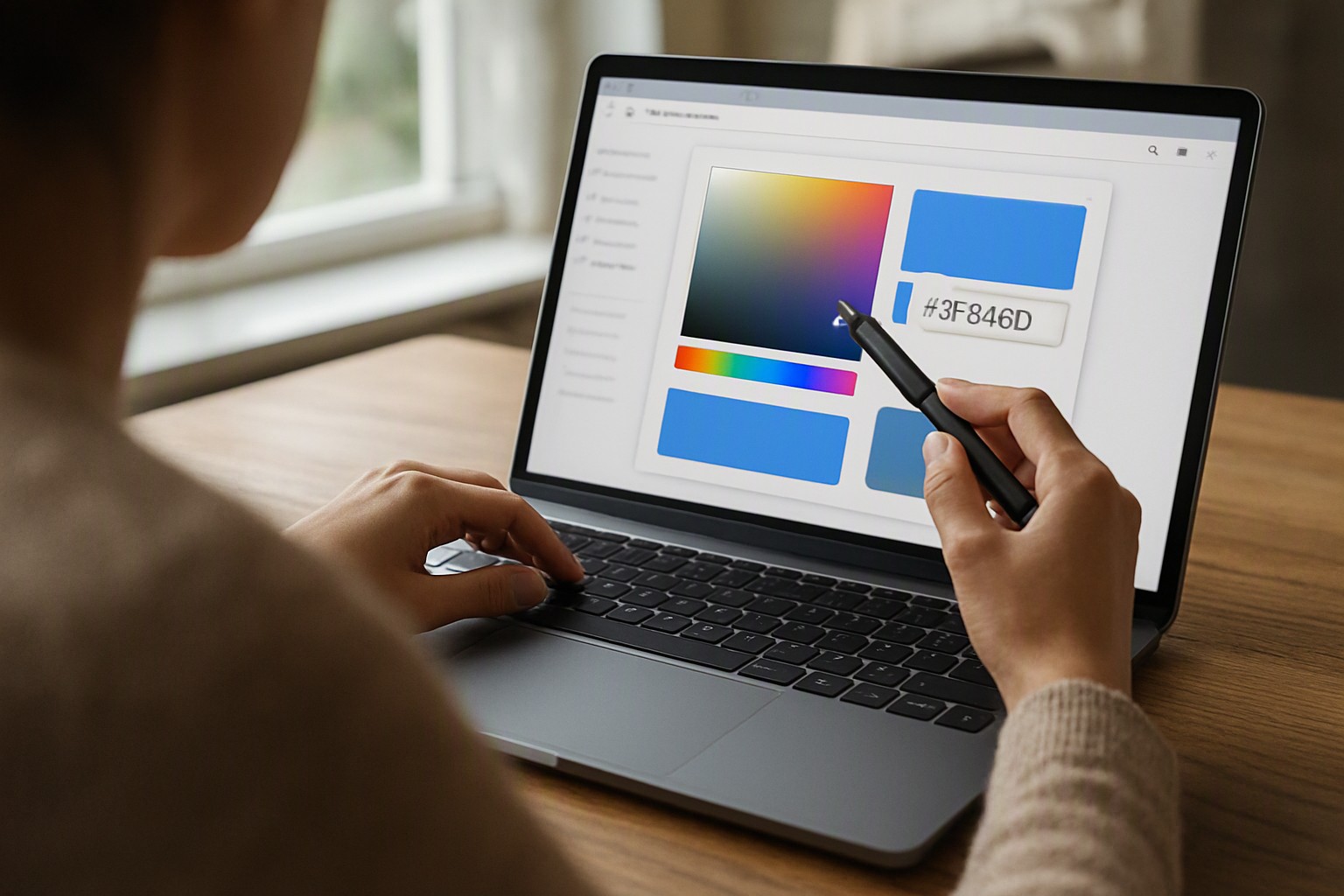
To extract hex code from any website online, use your browser's built-in developer tools by right-clicking an element, selecting Inspect, and locating the color value in the styles panel.
How Do You Quickly Extract Hex Code From a Website Online?
To extract hex code website online workflows efficiently, you can rely on native browser functions, dedicated browser add-ons, or image-based utilities when working with flattened assets. For day-to-day design tasks, pairing these methods with a website color picker tool streamlines the workflow.
Direct DOM inspection gives you the exact CSS property declared by the site author. Browser extensions offer global screen sampling, allowing you to click anywhere in the viewport to copy a value to your clipboard. When dealing with protected elements or rasterized banners, online image color pickers let you upload a reference screenshot and click directly on the pixels to retrieve the matching code.
red
#e5484d
green
#30a46c
blue
#0091ff
Which Browser Developer Tools Reveal Exact Color Codes?
Every major modern browser includes a native suite of diagnostic utilities. According to the Mozilla Developer Network documentation on CSS styling, the inspector pane parses all active stylesheets and displays computed values directly alongside rule declarations.
Opening the Inspector Across Browsers
- Google Chrome: Press `F12` on Windows or `Option+Command+I` on macOS, then click the element selection icon in the top-left corner of the dev tools panel.
- Mozilla Firefox: Press `Ctrl+Shift+C` on Windows or `Cmd+Option+C` on macOS to activate the element picker immediately.
- Apple Safari: Enable the Develop menu via Advanced preferences, then press `Cmd+Option+I` to open the Web Inspector.
Once the inspector is active, click any element on the page. In the Styles or Computed panel, locate properties like `background-color`, `color`, or `border-color`. Modern browser inspectors render a small colored square next to the value. Click that square to open an interactive palette modal where you can toggle the notation between hexadecimal, RGB, and HSL formats instantly.
What Are the Best Methods to Convert Extracted Formats?
Authors frequently declare colors using functional notation such as `rgb(255, 128, 0)` or `hsla(30, 100%, 50%, 0.8)`. When your workflow demands a standard six-character alphanumeric string, passing those values through an rgb to hex color converter online tool bridges the gap.
Modern web design utilizes alpha channels—expressed as an 8-digit hex code where the final two characters dictate opacity. For instance, an opaque blue `#0055FF` with 50% opacity translates to `#0055FF80`. Converting these values manually requires calculating the hexadecimal equivalent of decimal opacity percentages.
How Do You Capture Colors From Non-Standard Website Elements?
Standard DOM inspection fails when encountering embedded canvas elements, WebGL viewports, or complex SVG vectors where color data is encapsulated within binary or compiled rendering contexts.
Take a reference screenshot of the viewport using your operating system's native capture utility. Upload that file to find color from website assets directly within a web utility to sample the exact pixels without interference from CSS pointer-events or overlay layers. Pixel-level sampling ensures you capture the exact rasterized output rendered by the graphics card rather than the underlying stylesheet declaration.
How Do Online Color Extraction Methods Compare?
Selecting an extraction technique depends on speed, accuracy, and whether the target element is live code or a static graphic. The table below evaluates the primary options available to web designers and developers.
| Method | Speed | Accuracy | Installation Required | Edge Cases Handled |
|---|---|---|---|---|
| Browser Dev Tools | Instant | Exact DOM match | No | CSS gradients, solid fills |
| Browser Extensions | Fast | Viewport pixel match | Yes | SVGs, rendered images |
| Web Image Utilities | Moderate | Rasterized pixel match | No | Canvas, WebGL, screenshots |
Edge cases like CSS gradients and image filters complicate simple extractions. Gradients combine multiple color stops across a linear or radial axis, requiring you to inspect the CSS `linear-gradient()` property syntax explicitly rather than sampling a single point. Image filters alter the rendered appearance of photographs without changing the underlying file, meaning screen sampling captures the filtered result while file inspection yields the raw asset.
Frequently asked questions
Can I extract a hex code from a website without installing any software?
Yes. Every major modern web browser includes native developer tools that let you inspect elements and read their exact CSS color values without downloading extensions.
What should I do if the website uses RGB instead of hex codes?
You can convert RGB values to hexadecimal format using online color conversion utilities or by calculating the hexadecimal equivalent of red, green, and blue decimal channels.
Why do some extracted colors look different on my screen?
Color appearance varies due to monitor calibration, operating system color profiles, and whether the website uses CSS transparency or opacity filters.