
 General
How to Discover Color Scheme Used on Websites (2026 Guide)
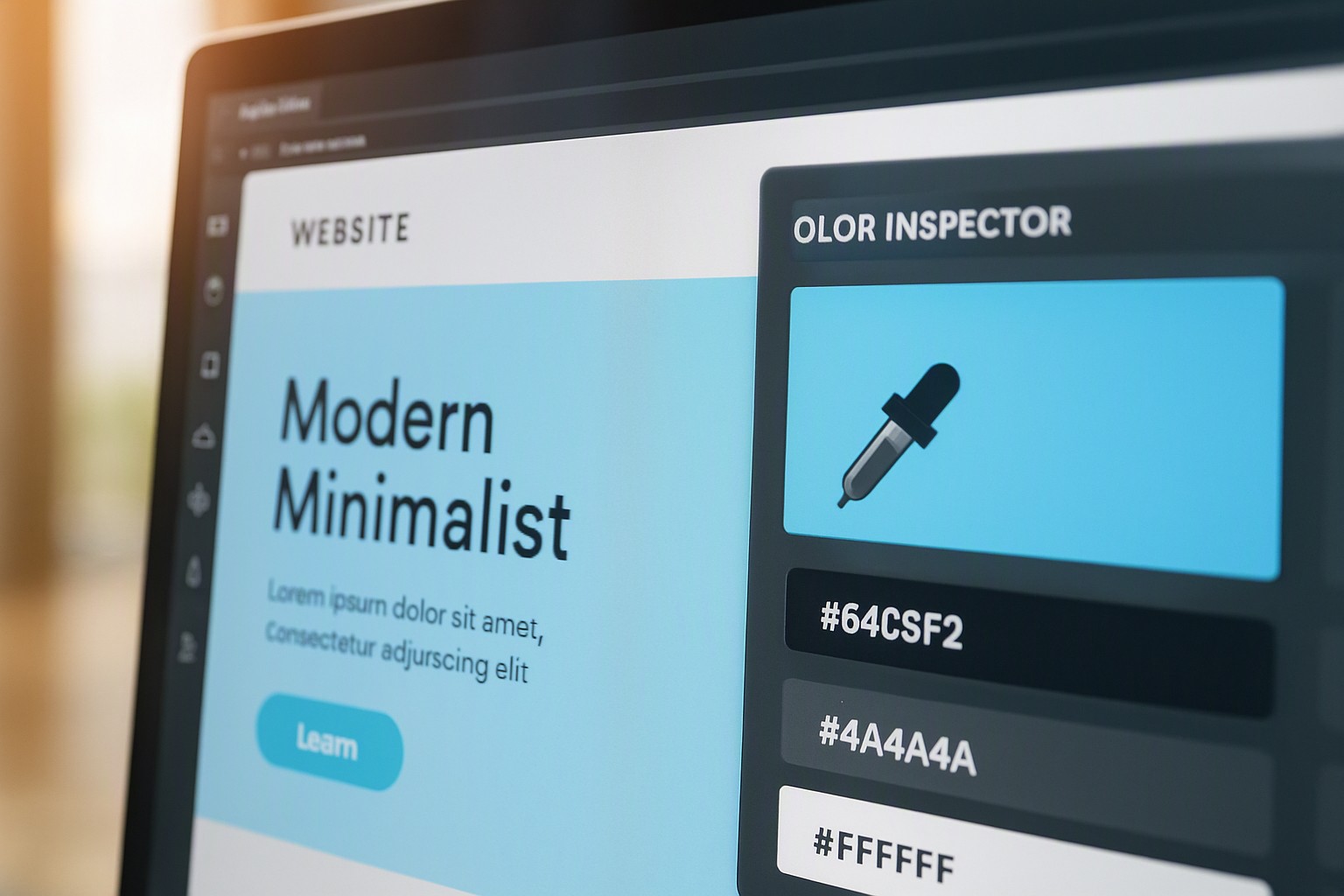
To discover color scheme website details quickly, inspect the page elements using browser developer tools, deploy an extension like ColorZilla, or paste the URL into an automated CSS color extractor. Mastering these methods allows designers, developers, and brand strategists to accurately identify hex codes, RGB values, and CSS variables from any live web page without guessing.
Article number four in this series focuses specifically on digital extraction mechanics. While building interfaces across color Fiind Websie, precise color identification prevents frustrating visual mismatches.
How do you inspect website colors using browser developer tools?
Every modern browser ships with built-in inspection utilities that let you view the raw styling rules of any DOM element. To open Chrome DevTools on Windows, press `Ctrl + Shift + I` or `F12`. On macOS, press `Cmd + Option + I`. Firefox uses the same shortcuts for its Web Developer Inspector.
Once the developer panel opens, click the Inspector arrow icon in the top-left corner of the panel. Hover over any text block, button, or navigation bar on the live web page and click it. The Elements tab instantly jumps to that specific HTML node.
Look at the Styles pane, usually docked to the right side or the bottom of your screen. Scroll through the CSS declarations to locate properties such as `background-color`, `color`, and `border-color`. Modern sites store these values inside CSS variables defined on the `:root` selector, appearing as variables like `--primary-accent: #2b4c7e;`.
Chrome and Firefox include a built-in eyedropper tool directly within the styles panel. Click the small colored square beside any hex or RGB value in the CSS rules to launch the eyedropper, then click any pixel across the viewport to sample its exact color value. This method avoids the need for external software when checking isolated UI elements.
What are the best browser extensions to discover color scheme website data instantly?
Manual inspection works well for single elements. Comprehensive audits require dedicated browser add-ons.
Popular extensions like ColorZilla, CSS Peeper, and Eye Dropper for Chrome and Firefox automate the extraction process completely. These extensions parse the loaded Document Object Model (DOM) and stylesheets to generate an instant inventory of all hex and RGB codes used on the page. ColorZilla, for instance, includes a webpage color analyzer that lists every color present in the stylesheet alongside its frequency of use.
However, extensions have clear technical limitations. When a website relies heavily on HTML5 `<canvas>` elements, WebGL rendering, or heavily compressed rasterized background images, extensions fail to grab precise vector colors. In these instances, the extension only captures the pixel color of the compressed image file rather than the raw CSS value. For a deeper dive into selecting the right utility, consult our advice on a website color picker tool.
How can online URL analyzers extract a full brand palette?
Automated URL scrapers bypass the browser interface entirely by fetching a webpage's HTML and external stylesheets via an API. These tools parse all CSS rules, inline styles, and SVG fills, compiling the data into a structured swatch sheet within seconds.
Comparing manual DOM inspection against automated URL parsing reveals distinct trade-offs in speed and depth. Manual inspection offers absolute precision for isolated elements, while URL scrapers process hundreds of CSS rules instantly.
| Extraction Method | Speed | Accuracy | Ease of Use | Best For |
|---|---|---|---|---|
| Browser DevTools | Slow | Perfect | Moderate | Single elements & debugging |
| Browser Extensions | Fast | High | High | Quick style sheets & hex grabs |
| Automated URL Scrapers | Instant | Good | High | Full brand palette generation |
For broader design work, you can explore how to use a color swatch generator to refine your extracted palettes into cohesive design systems.
How do you handle color contrast and accessibility when building your palette?
Extracting hex codes from a website does not guarantee that the resulting combination meets modern accessibility standards. According to the Web Content Accessibility Guidelines (WCAG) 2.2 specification, normal text requires a minimum contrast ratio of 4.5:1 against its background, while large text requires at least 3:1.
Improper extraction often leads to poor readability. If a website uses background opacity, `rgba()` overlays, or CSS blend modes, the raw hex code extracted from the DOM will not match the perceived color on screen. Overlapping translucent layers alter the effective luminance values.
When adapting colors for data-dense layouts, ensure your contrast ratios remain compliant by reviewing methods outlined in our geospatial heatmap color palettes guide.
How do you translate extracted hex codes into actionable design systems?
Raw hex codes collected from a website must be organized before they can be deployed in a new project. Grouping extracted values into distinct functional categories forms the foundation of a usable design system:
- Dominant colors: The background and primary neutral surfaces that occupy 60% of the viewport.
- Secondary colors: Supporting structural elements, cards, and secondary navigation bars.
- Accent colors: Call-to-action buttons, active states, and alert badges.
Converting HEX and RGB values into HSL (Hue, Saturation, Lightness) format simplifies the manipulation of saturation and lightness when building accessible hover states. Designers often input these structured codes into platforms like Figma, Adobe Illustrator, or Canva color codes libraries to maintain consistency across marketing materials and user interfaces.
Frequently asked questions
Can I discover color scheme website values if the site uses images for its background?
Yes, but browser DOM inspectors will only show the container element rather than the pixel values inside the graphic. For image backgrounds, you must save the image file locally or use an eyedropper extension that samples directly from viewport pixels.
Why do extracted hex codes sometimes look different on my screen?
Color discrepancy often stems from CSS properties like opacity, rgba overlays, or CSS blend modes that alter the base hex code. Additionally, your monitor's color profile and calibration will impact how the final shade appears.
Are there automated tools that let me discover my color palette from a screenshot?
Many online design utilities and image swatch generators allow you to upload a screenshot of a website. The software then processes the image pixels to generate a corresponding palette of dominant hex codes.