 General
How to Choose Accessible Brand Colors Without Ruining Your Aesthetic
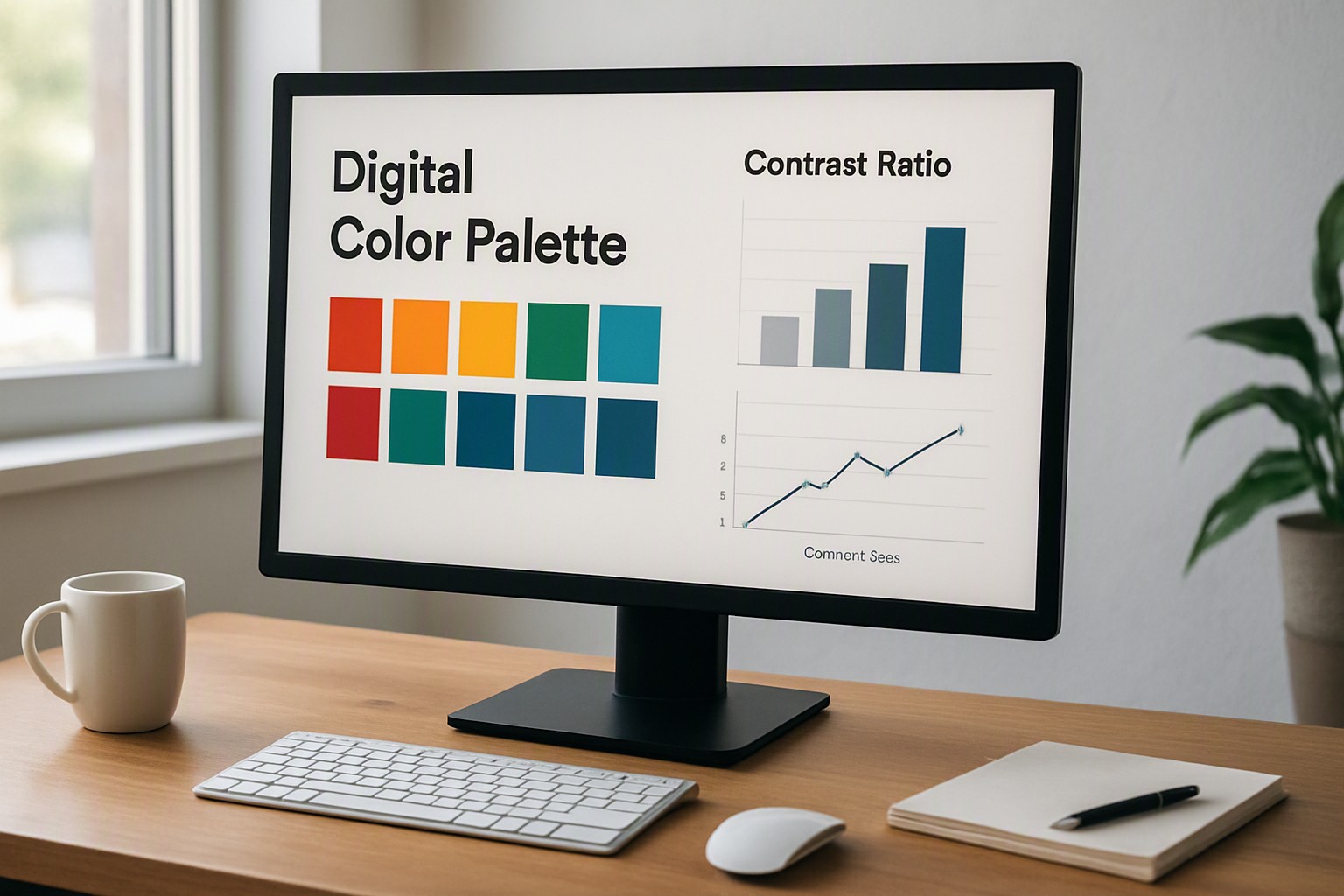
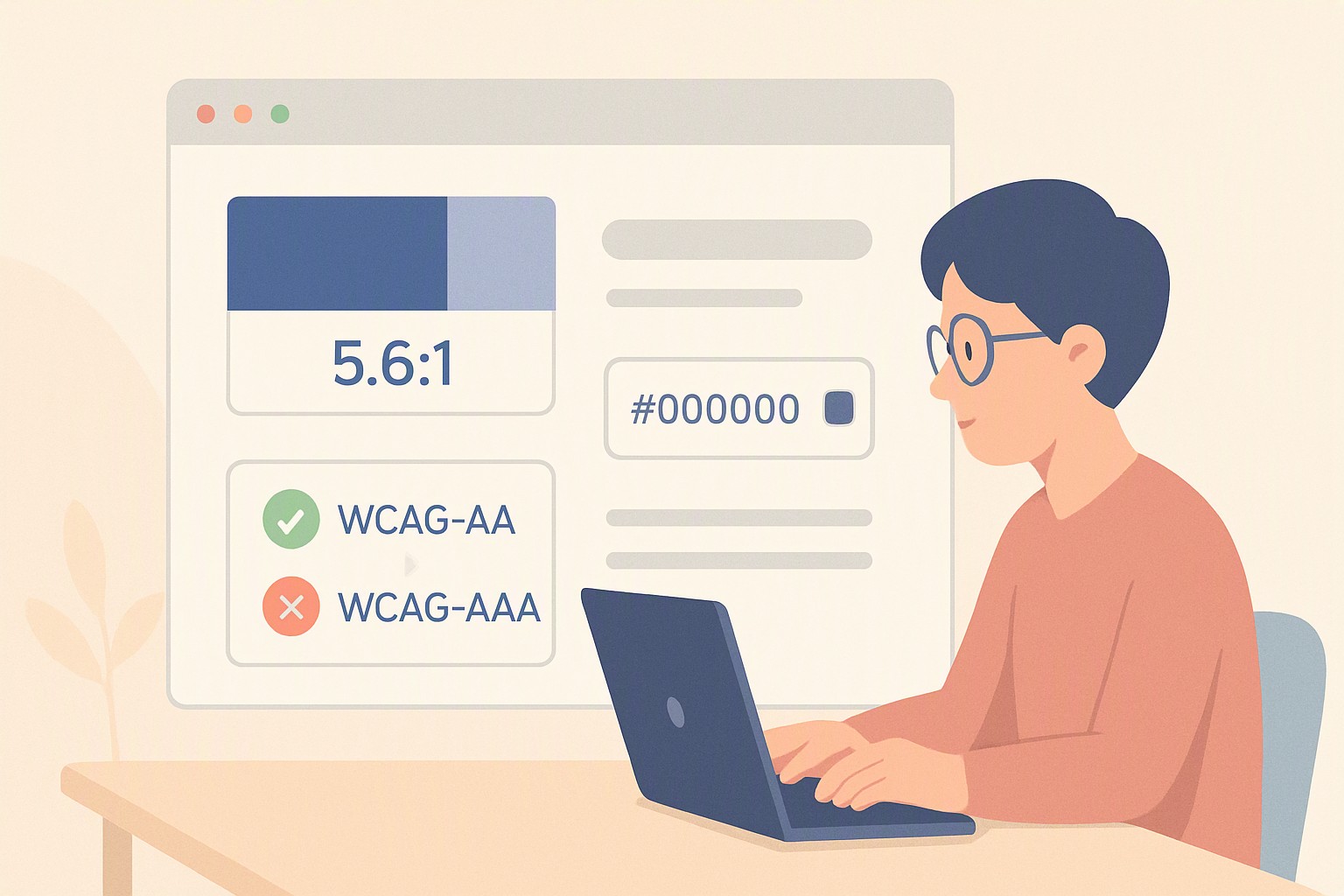
To choose accessible brand color combinations, you must pair text and background elements to achieve a minimum contrast ratio of 4.5:1 for standard body copy, verified using tools like the WebAIM contrast checker or the APCA standard.
What are the core contrast requirements for brand compliance?
Digital products must adhere to structured benchmarks. According to the Web Content Accessibility Guidelines, normal text requires a minimum contrast ratio of 4.5:1 against its background. Large text—defined as 18pt bold or 24pt regular and above—requires a 3:1 ratio.
Modern design standards are shifting toward the Advanced Perceptual Contrast Algorithm (APCA). APCA calculates contrast based on human perception by accounting for font weight, spatial frequency, and ambient lighting conditions. You can explore practical applications of these ratios by reviewing accessible colour palette examples designed for complex digital interfaces.
How do you audit your existing palette before making changes?
Test every foreground and background combination across your digital properties. Evaluate primary, secondary, and accent colors systematically using automated checking tools rather than relying on visual inspection alone.
To run an exhaustive audit, extract every hex code from your design system and test them in pairs. Many teams discover that their signature brand color fails accessibility tests when used as body text. When this happens, relegate the non-compliant hue to decorative elements or large feature graphics while reserving a darker, compliant variant for typography. For a comprehensive toolkit to audit your hex codes, visit color Fiind Websie to analyze your current design assets.
How do you adjust brand hues without losing your visual identity?
Adjusting brand hues without breaking your visual identity requires incremental modifications in lightness and saturation rather than wholesale color replacements. If a primary brand blue has a contrast ratio of 3.2:1 against white, darken the lightness value by 15% until the pairing crosses the 4.5:1 threshold.
#000000
#000000
#ffffff
#ffffff
blue
#0091ff
black
#0a0a0a
gray
#8b8d98
Modifying colors for data visualizations differs significantly from standard typography and UI buttons. While text requires strict luminance separation, charts and graphs rely on hue distinction and clear boundaries. When building data-heavy interfaces, the techniques outlined in how to design accessible geospatial heatmap color palettes help maintain data clarity without violating UI color accessibility guidelines.
| Element Type | Minimum WCAG Ratio | APCA Target | Common Adjustment Technique |
|---|---|---|---|
| Body Text | 4.5:1 | Lc 60 | Darken lightness value |
| Large Headings | 3:1 | Lc 45 | Increase font weight or size |
| UI Components | 3:1 | Lc 30 | Add high-contrast border |
| Decorative Assets | None | None | No accessibility requirement |
Which tools make testing and pairing fast and reliable?
Speed and reliability depend on integrating testing utilities directly into your design workflow.
- WebAIM Contrast Checker: A free web-based utility for checking exact hex code pairings against WCAG 2.1 criteria.
- Stark: A design plugin for Figma and Adobe XD that highlights contrast failures directly on your artboards.
- Canva Color Codes: A reference resource for discovering pre-tested palettes and understanding Canva color codes that align with accessibility frameworks.
Building fallback systems for high-contrast mode users ensures your interface remains functional when operating system overrides take effect. Define CSS media queries, such as `forced-colors: active`, to swap subtle brand gradients for solid, system-defined borders and text fills.
How do you handle complex UI states like focus rings and disabled buttons?
According to WCAG 2.1 success criterion 1.4.11, user interface components and graphical objects must maintain a minimum 3:1 contrast ratio against adjacent colors. This rule applies directly to form input borders, toggle switches, and keyboard focus rings.
A frequent accessibility pitfall involves styling disabled buttons with very low-contrast gray text on a light gray background. While the disabled state communicates inactivity, failing contrast standards completely blocks screen-magnifier users and individuals with mild visual impairments from reading the button label. Pair disabled states with distinct cursor changes, structural pattern shifts, or clear tooltips.
Frequently asked questions
Can I use pure black text on pure white for my brand?
Yes, pure black (#000000) on pure white (#FFFFFF) delivers the highest possible contrast ratio of 21:1, easily passing all accessibility requirements.
Do accessibility contrast rules apply to large logos and decorative graphics?
No, purely decorative elements and logotypes that are part of a brand's corporate identity do not strictly require a 4.5:1 contrast ratio under WCAG guidelines.
How do I handle brand colors that fail contrast checks on buttons?
Darken the background shade for interactive states or place dark text over a lighter tint of the brand color. Alternatively, add a high-contrast border around the button.